How to manage and edit your Smart Links
Find, search, edit, enable or disable, and delete your Smart Links from the Links page — and export the list to CSV. Every change takes effect on the next click, and the short URL never changes, so anything you’ve already shared keeps working.
Everything you create lives on the Links page — a searchable, sortable table of every Smart Link with its destination, countries, clicks and status at a glance. From here you can edit a link’s rules, pause it, export the whole list to CSV, or move links to Trash, all without ever breaking the short URL.
- 1
Open the Links page
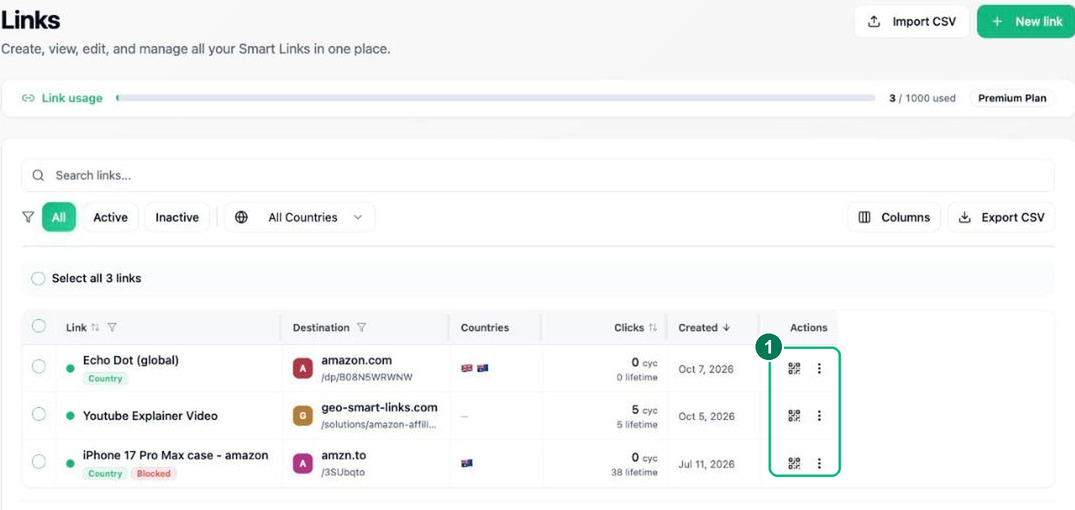
Click Links in the sidebar to see all your Smart Links in one searchable, sortable table — each link’s destination, countries, clicks and created date at a glance.
- 2
Find, edit or manage a link
Search by title or code, or filter by status (Active / Inactive) and country. Then use a link’s ⋮ actions menu to edit it, view details, copy its URL, grab its QR, deactivate it, or move it to Trash.
- 1 — The ⋮ actions menu on each row: edit, view, copy, QR, activate/deactivate, delete.
- 3
Export or bulk-manage
Use Export CSV to download your links (destinations and routing rules included), or tick the checkboxes to act on several at once. Deactivated links stop redirecting but aren’t deleted; trashed links can be restored within 30 days.
Frequently asked questions
Does editing a link change its short URL?
No. The gsl.li short code stays fixed for the life of the link, so you can change the destination, countries, device rules or schedule freely and everything you have already shared continues to resolve correctly.
What's the difference between deactivating and deleting a link?
Deactivating stops a link redirecting but keeps it — and its analytics — so you can switch it back on later. Deleting moves it to Trash, where it can be restored within 30 days before it is removed permanently.
Can I export my links?
Yes. Export CSV downloads your links with their destinations and routing rules included — useful for backups, bulk edits in a spreadsheet, or reporting to a client or team.
How do I change the name of a link?
A link has two names: the title that labels it in your dashboard, and the short code at the end of the URL — gsl.li/your-code. You pick the short code when you create the link, and it stays fixed so anything you have already shared keeps working. The title and all of the link’s rules can be changed any time: open the Links page, find the link, click Edit, update it and save.
How do I edit a link after I have created it?
Every Smart Link is editable. On the Links page, click Edit on any link to change where it points, its country, device and OS rules, its schedule or its A/B variants. Because the gsl.li short code never changes, edits take effect instantly and nothing you have shared breaks.