How to create a geo-smart-link
Create one Smart Link that sends visitors to a different destination based on their country — Amazon UK for British shoppers, Amazon Australia for Australians, and a default URL for everyone else — all from your Geo-Smart-Links dashboard. Takes about three minutes and works on every plan, including Free.
A geo-smart link is a single short URL that quietly checks where each visitor is and sends them to the destination you picked for their country — your US store for American shoppers, your UK store for British ones, and a default for everyone else. You set it up once; the routing happens automatically on every click, and the short link itself never changes, so anything you share keeps working.
- 1
Start on your dashboard
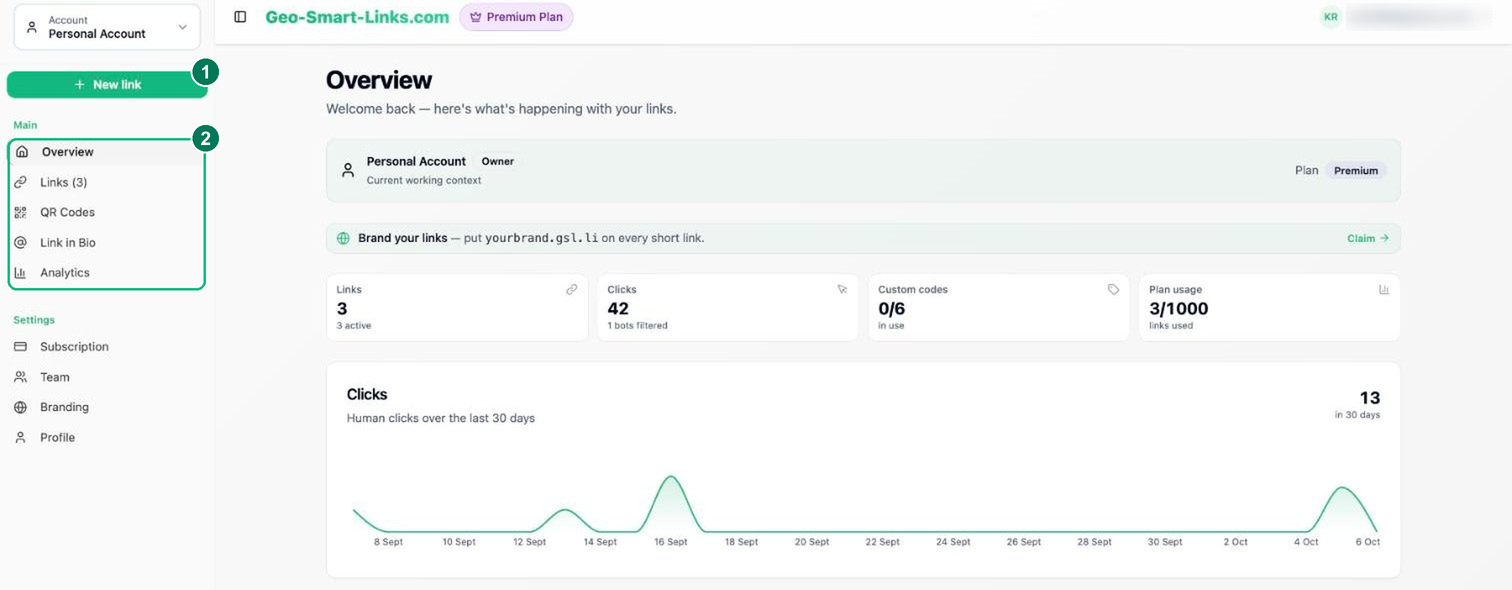
Your dashboard is home base. The + New link button opens the Smart Link builder, and the left navigation holds your links, QR codes, bio pages and analytics. Click + New link to begin.
- 1 — + New link: opens the Smart Link builder.
- 2 — Main navigation: Links, QR Codes, Link in Bio and Analytics.
- 2
Enter your destination URL and a title
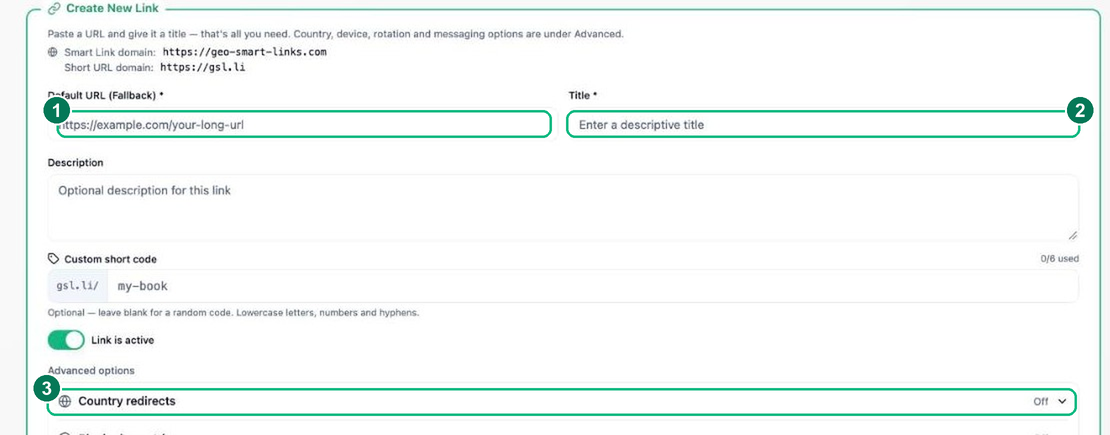
Paste your main destination into Default URL (Fallback) — where everyone lands unless a country rule applies — and give the link a Title. Country routing lives under Advanced options.
- 1 — Default URL (Fallback): the catch-all destination.
- 2 — Title: a name so you can find the link later.
- 3 — Advanced options: country routing, device & OS rules, A/B testing and more.
- 3
Add a destination for each country
Expand Country redirects, click + Add Country, choose a country and paste the URL those visitors should land on. Repeat for each market — everyone not listed still gets your Default URL, so you only add the countries you care about.
- 1 — Pick the country from the searchable list.
- 2 — Its destination URL: where that country’s visitors go.
- 3 — Everyone not listed falls back to your Default URL.
Tip: keep the same product path across stores (e.g.
/dp/B08N5WRWNWon each Amazon domain) so every visitor lands on the same product, just in their local store.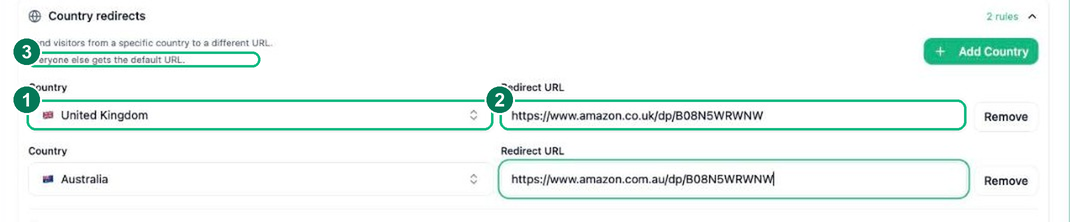
- 4
Create your Smart Link and share it
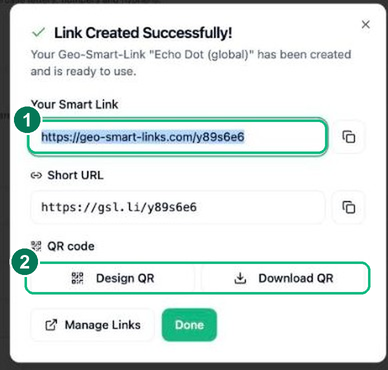
Click Create Smart Link. You get your shareable link on both geo-smart-links.com and the short gsl.li domain, plus a QR code you can design or download. Share the one link anywhere — country routing happens automatically on every click, and the short URL never changes.
- 1 — Your Smart Link (and the short gsl.li version).
- 2 — Design or download a QR code for the same link.
Frequently asked questions
Do I need a paid plan to create a geo-smart link?
No. Country-based routing is included on every plan, including Free. The free plan comes with a set allowance of active links and monthly clicks; paid plans simply add more links, higher click allowances, team members and extras like custom short codes and branded subdomains.
What happens to visitors from countries I didn't add a rule for?
They land on your Default (Fallback) URL. You only add rules for the countries you care about — everyone else gets the catch-all destination, so no click is ever wasted.
Can I change where a link points after I've shared it?
Yes. Edit the destination or the country rules whenever you like and the change takes effect on the very next click. The short gsl.li URL stays the same, so every post, video description and printed QR code you have already shared keeps working.