How to build a link-in-bio page
Create a single mobile-friendly page that holds all your links — perfect for an Instagram, TikTok or YouTube bio. Add a theme, social icons and an avatar, then share one short URL that routes like any other Smart Link.
A link-in-bio page gives you one shareable URL with your photo, bio, buttons and social icons — and because each button can be a Smart Link, it can route by country or device and open in the app, not just sit there static like other bio tools.
- 1
Open the bio builder
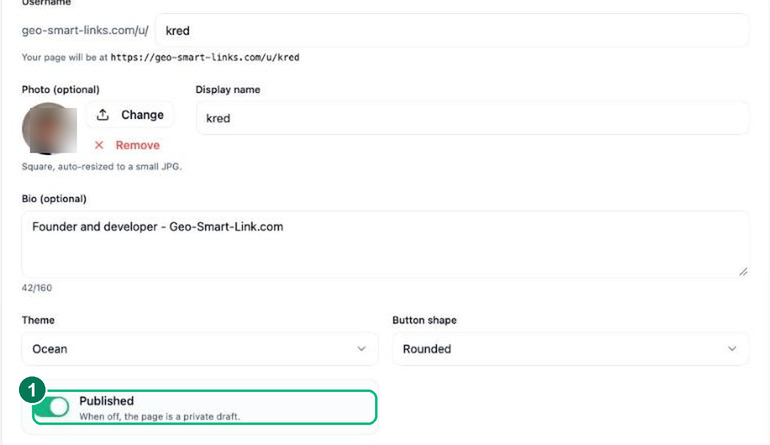
Open Link-in-Bio and start a new page. Add your username, display name, a short bio and an avatar — a live preview on the right shows exactly how your page will look on a phone.
- 1 — The Published toggle — flip it on to make your page live (off keeps it a private draft; see step 3).
- 2
Add links, blocks and social icons
Add link buttons, headings and a row of social icons, then drag to reorder them. Each link button can point at a Smart Link, so your geo and device routing still applies behind the scenes.
- 3
Theme it and publish
Pick a theme, button shape and colours to match your brand, then Publish. Share the page’s short URL in your social profiles — and track visits in your Analytics just like any other link.
Frequently asked questions
How is this different from a plain link-in-bio tool?
Every button can be a Smart Link, so a single “Shop” button can send US and UK visitors to different stores, open in an app, and count taps — things a static bio page simply cannot do.
Can I theme my bio page?
Yes. Choose from themes, button shapes and a social-icon row, add thumbnails and embeds, and publish it at your own geo-smart-links.com/u/ address.
Does my bio page have its own analytics?
Yes — you can see per-button taps alongside the country and device breakdown, so you know which link and which audience is driving the most engagement.